TCL 27C2A Pro Review: 4K Mini LED Gaming With 160Hz and 2,304 Dimming Zones
- Gate
- AI & ML
- Departs
- Crew
- Christian Eberle
- Passengers
- 384
The 27C2A Pro pairs vivid, accurate color and exceptionally bright Mini LED HDR with flexible high refresh rates, though its stand wobbles.
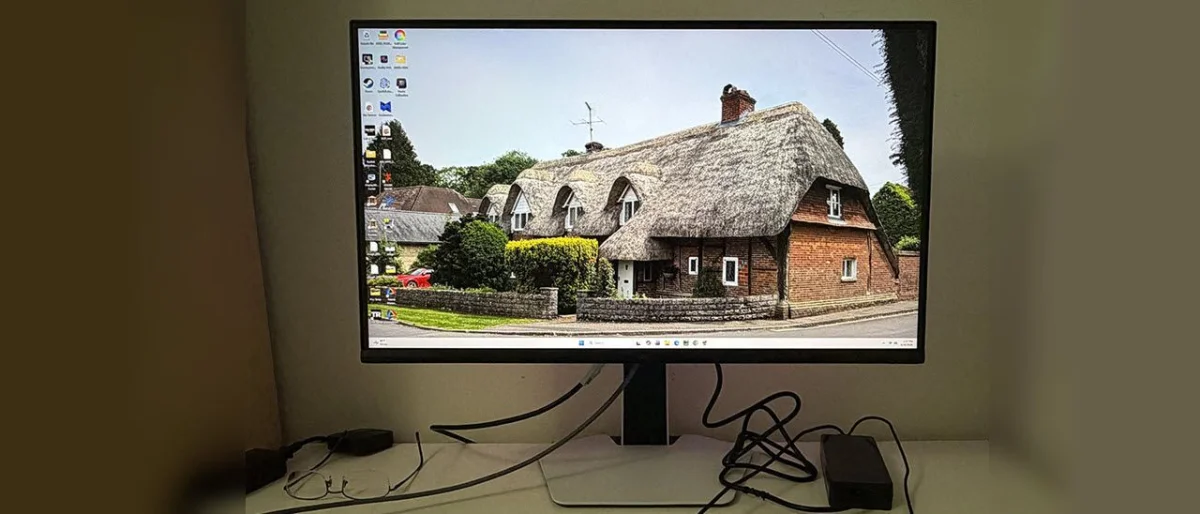
The TCL 27C2A Pro makes a strong case for Mini LED in a market crowded with OLED gaming displays. Its 27-inch 4K panel combines 2,304 local dimming zones, very high peak brightness and accurate color modes with a dual refresh option: 160Hz at 4K or 320Hz at 1080p. At the $600 price cited for this review, that mix serves both gaming and color focused work.
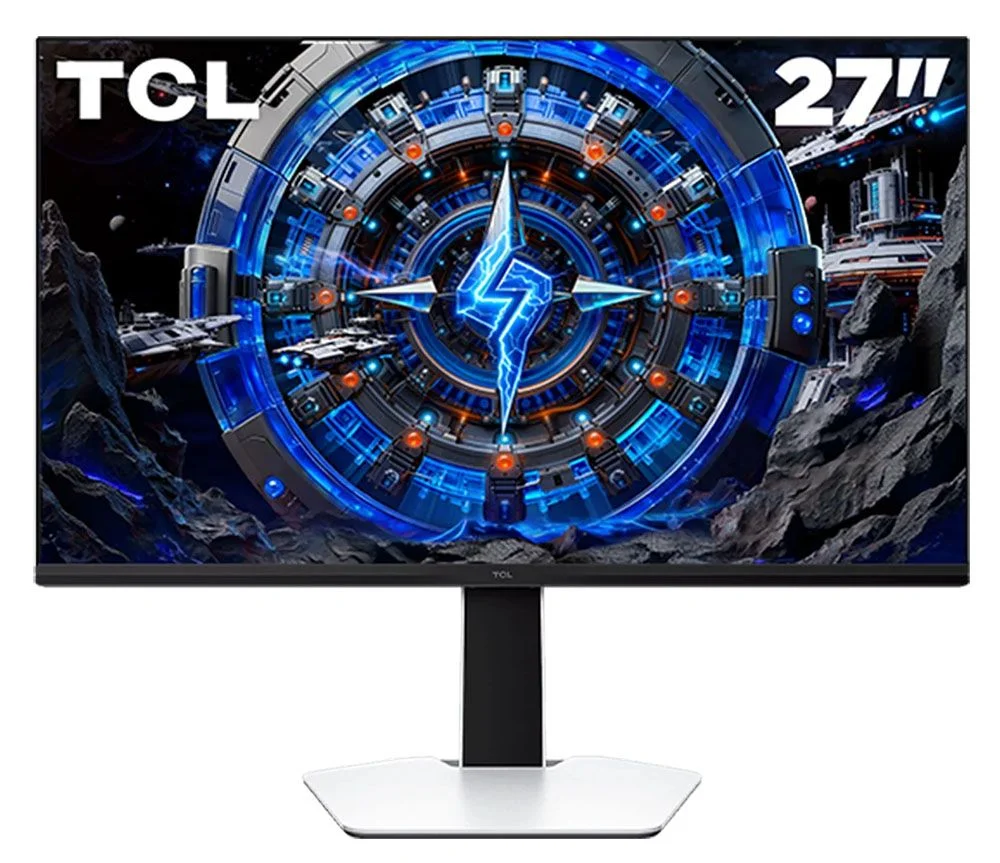
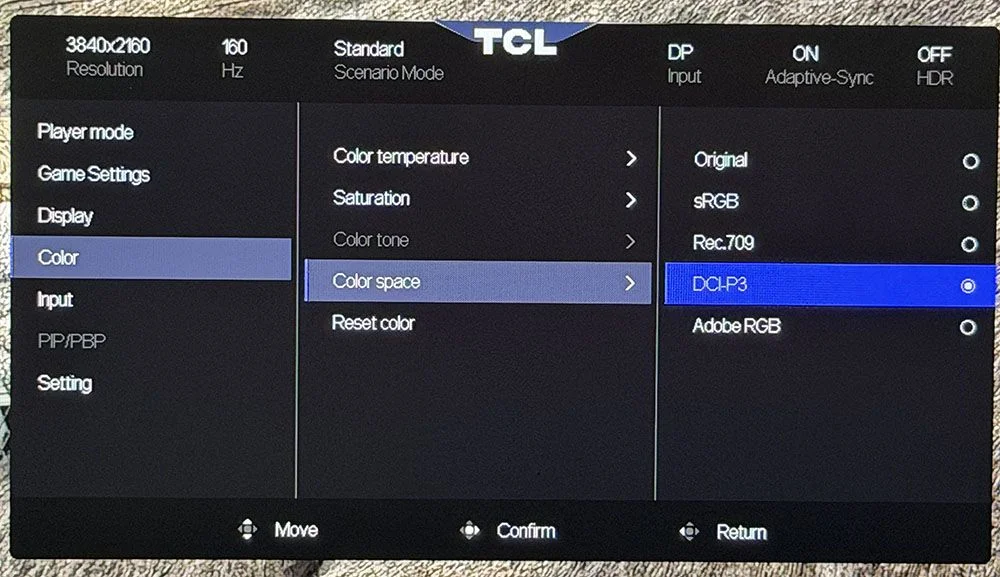
It doesn’t reproduce OLED’s pixel level control, and the stand’s loose panel joint is a real ergonomic flaw. But its tested brightness, contrast and image uniformity are unusually strong for an LCD. The key setup detail is easy to miss: select the color gamut you need instead of leaving the monitor in its default Original color space.
Mini LED brightness and contrast
The display uses an IPS type panel that TCL calls HFS Shoot, paired with a full array local dimming backlight. The 2,304 zones let the monitor adjust illumination across small areas of the screen. That helps dark regions stay dark beside bright highlights, reducing the washed out look that can affect LCD displays with fewer zones. A Quantum Dot layer expands the available color range beyond the standard DCI-P3 gamut.
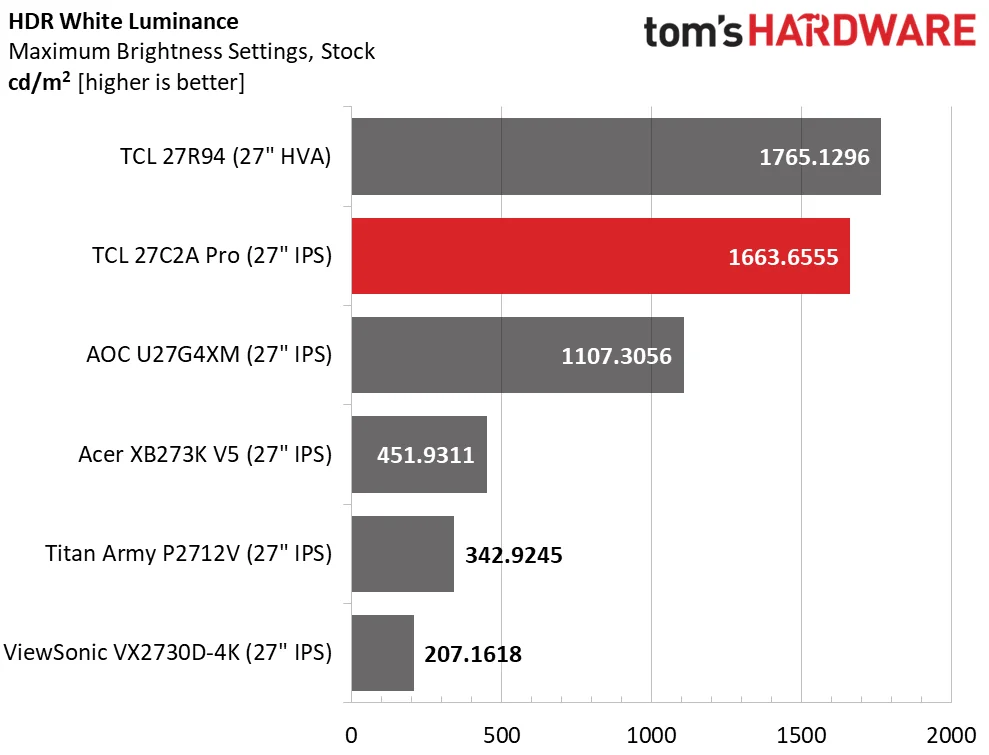
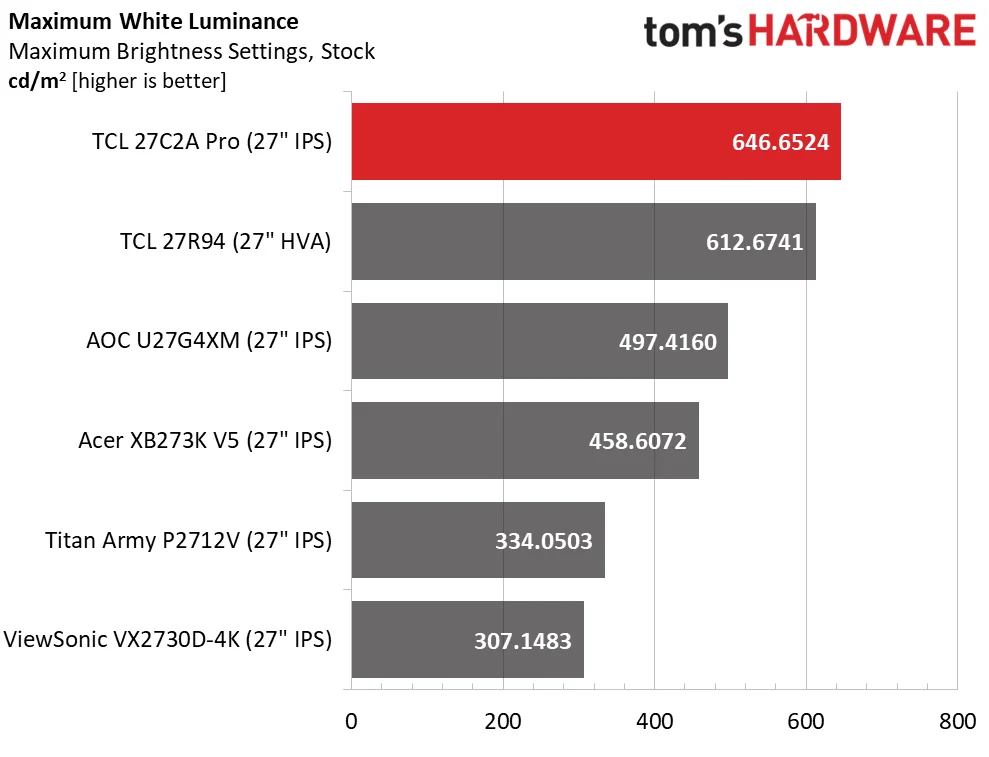
Brightness is the panel’s clearest advantage over OLED. In SDR, testing measured almost 650 nits on a full white screen with local dimming off. With dimming set to High, a 25% HDR window reached 1,663 nits; a smaller 3% window aligns with TCL’s 2,000 nit specification. These measurements show why the 27C2A Pro can make intense highlights stand out even in a bright room.
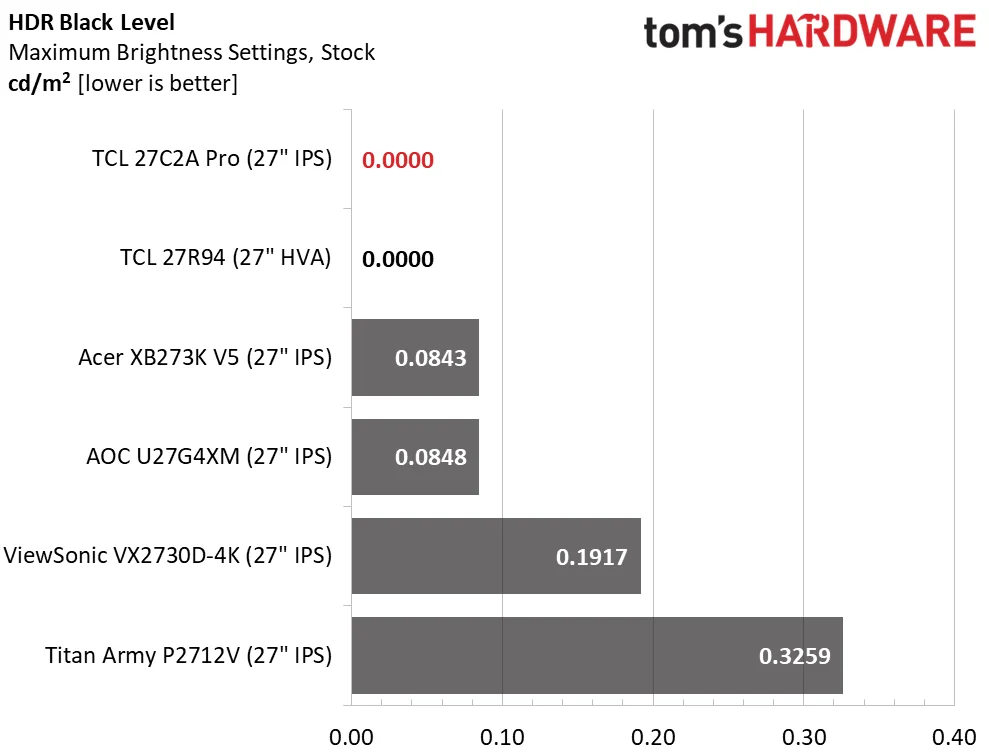
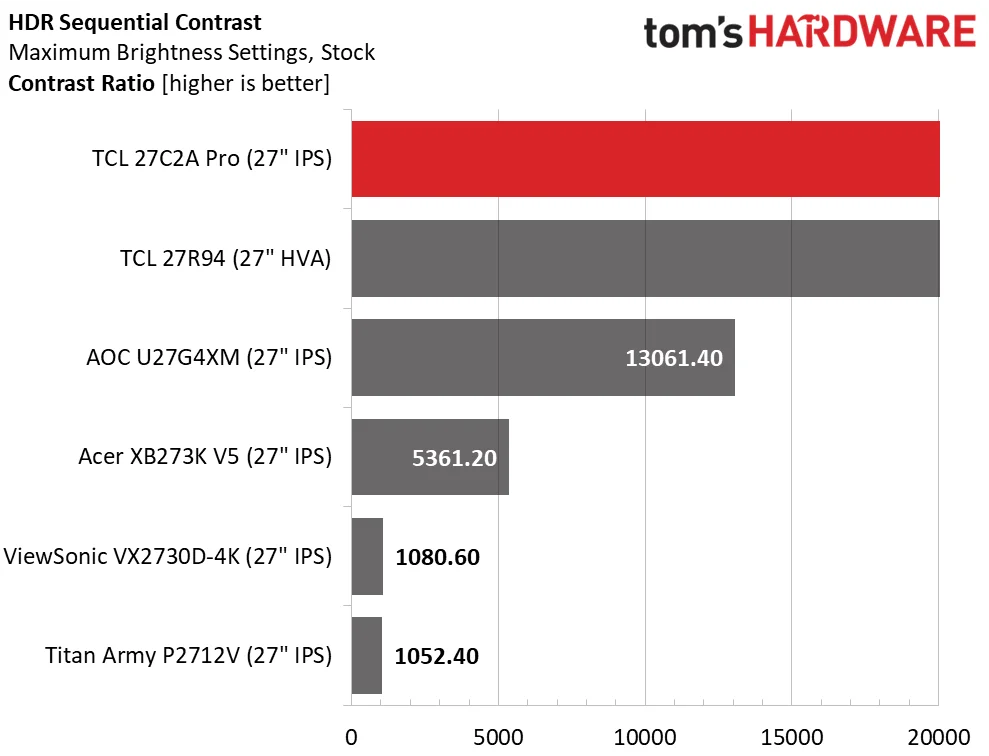
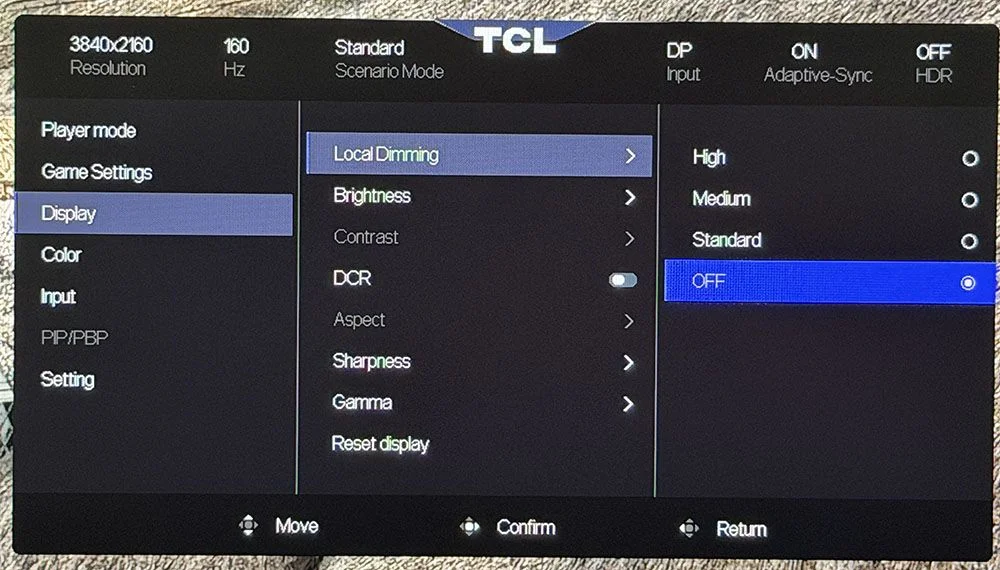
Local dimming works in both SDR and HDR, a useful option for people who want deeper contrast in everyday desktop use as well as games and video. The Standard dimming setting produces a measured contrast ratio of about 1,800:1. Medium and High act more aggressively, turning off the backlight in areas that should display black. In the tests, black levels at the higher settings were too low to measure.
That result doesn’t mean the panel is identical to OLED. Each Mini LED zone covers many pixels, so the backlight can’t control every bright or dark pixel independently. The reviewer found that the TCL came close to OLED’s contrast in practice, but OLED still has the advantage in fine detail around small bright objects against black. In exchange, the TCL reaches much higher peak brightness.
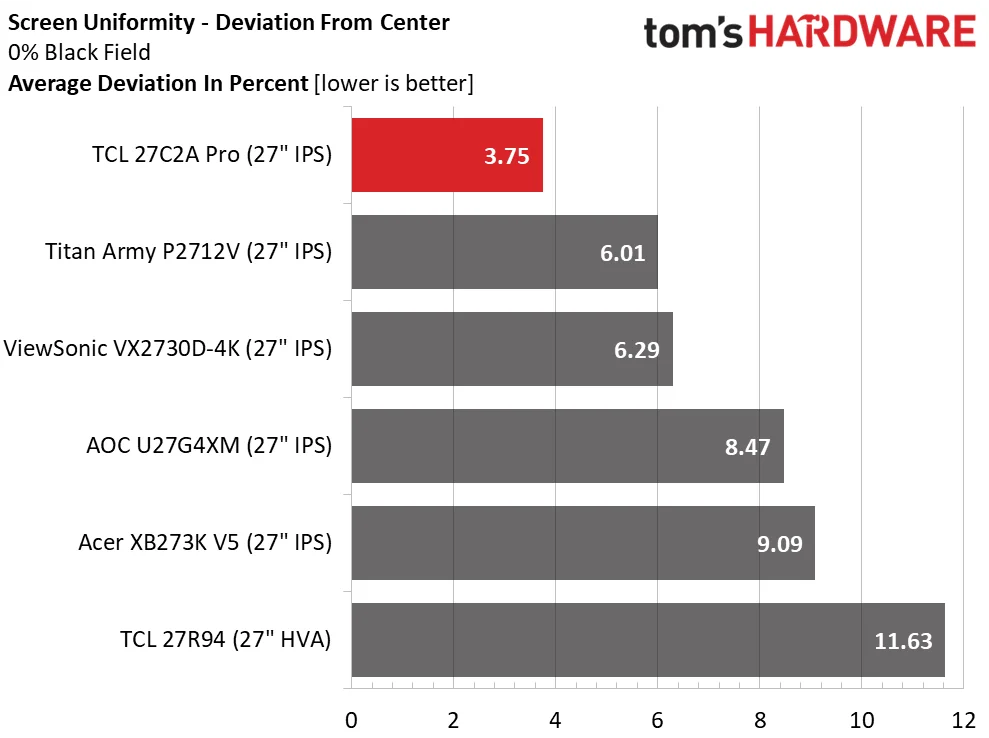
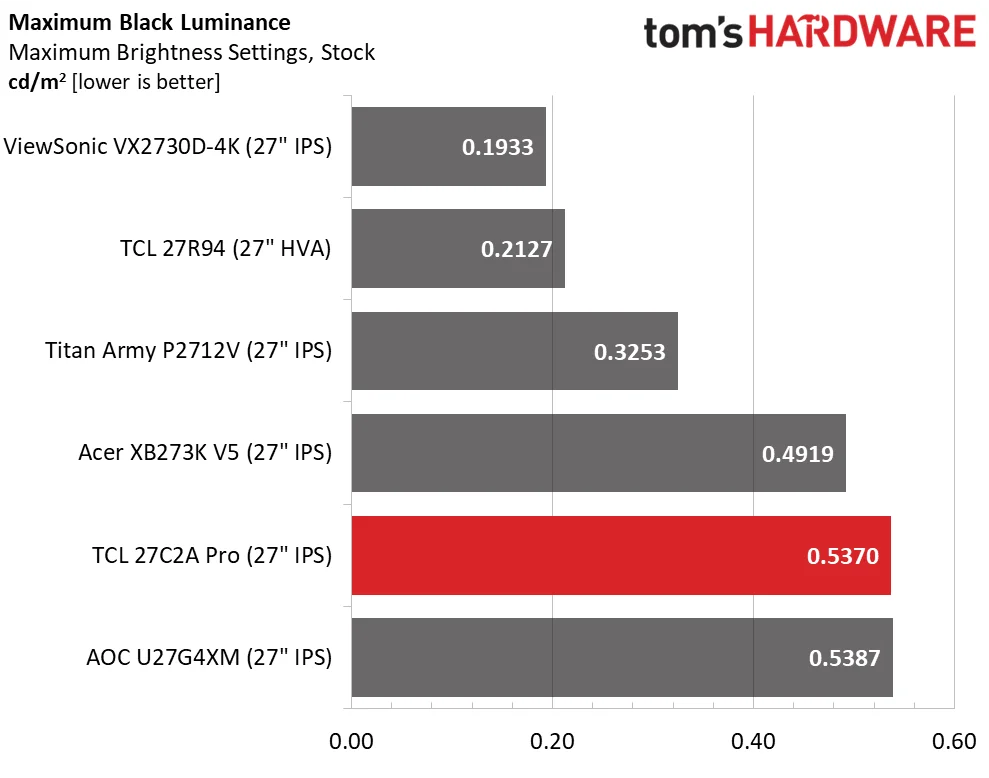
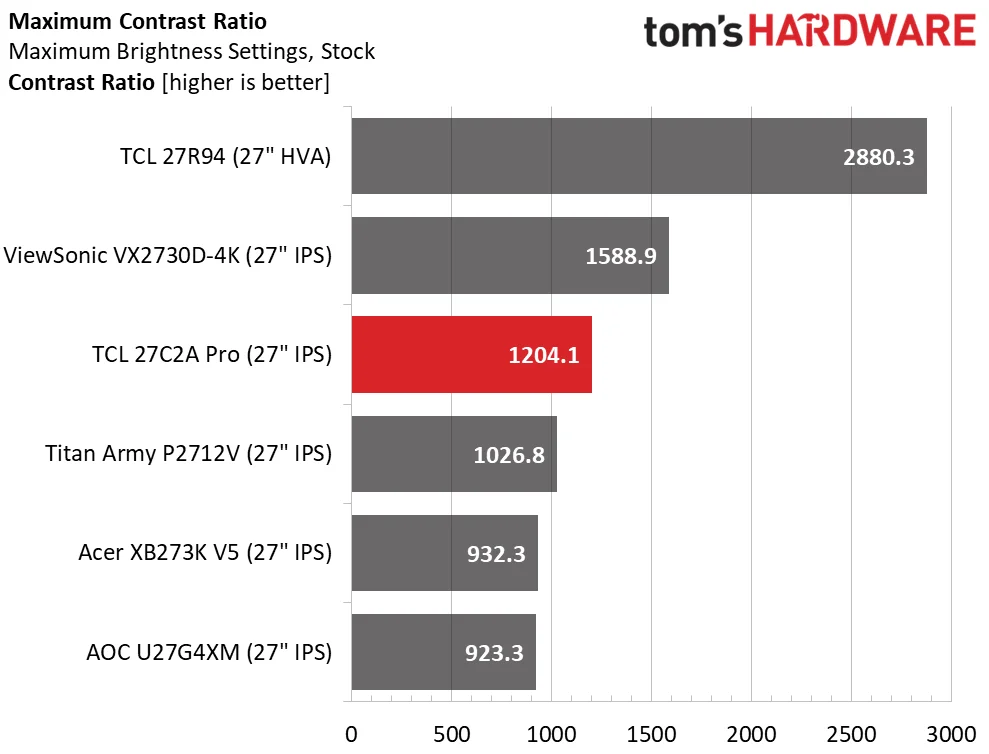
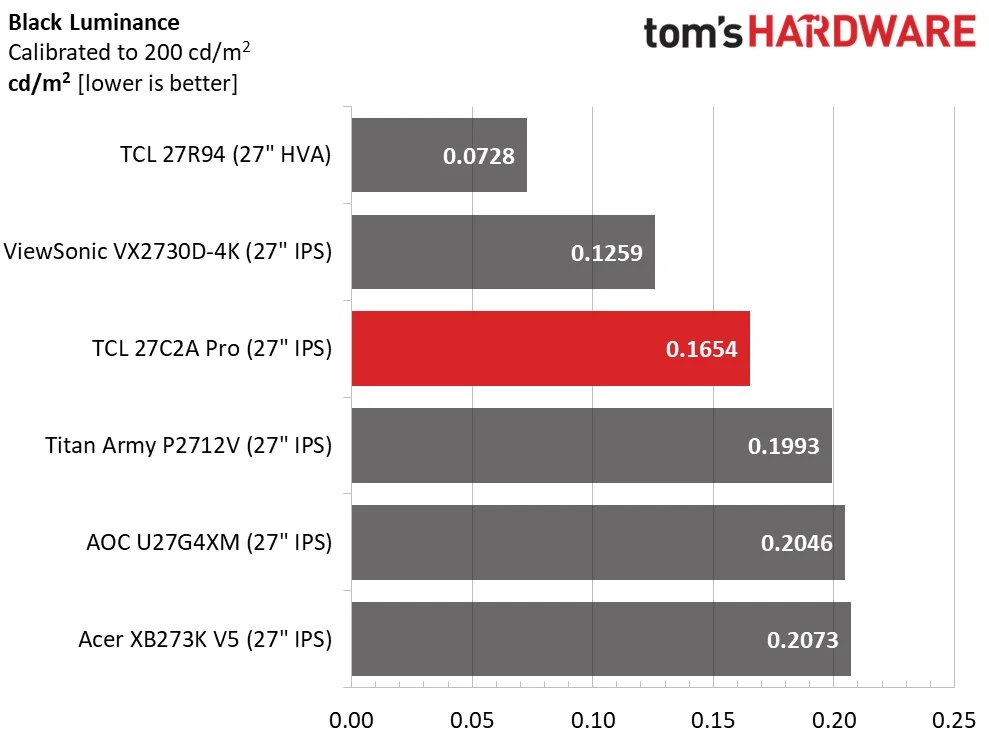
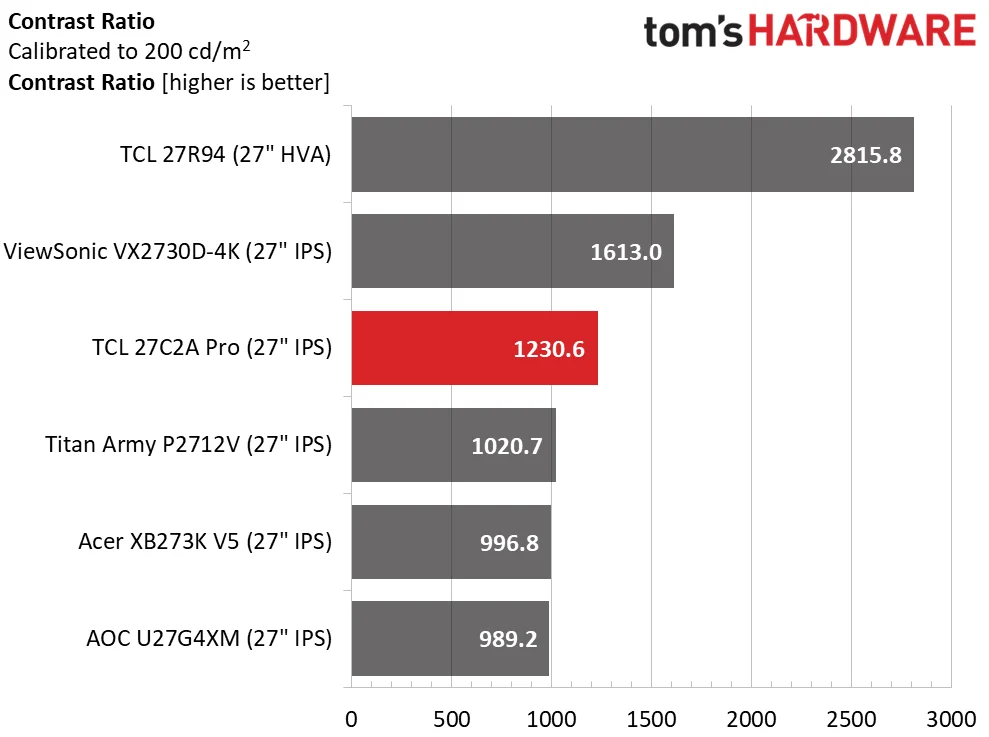
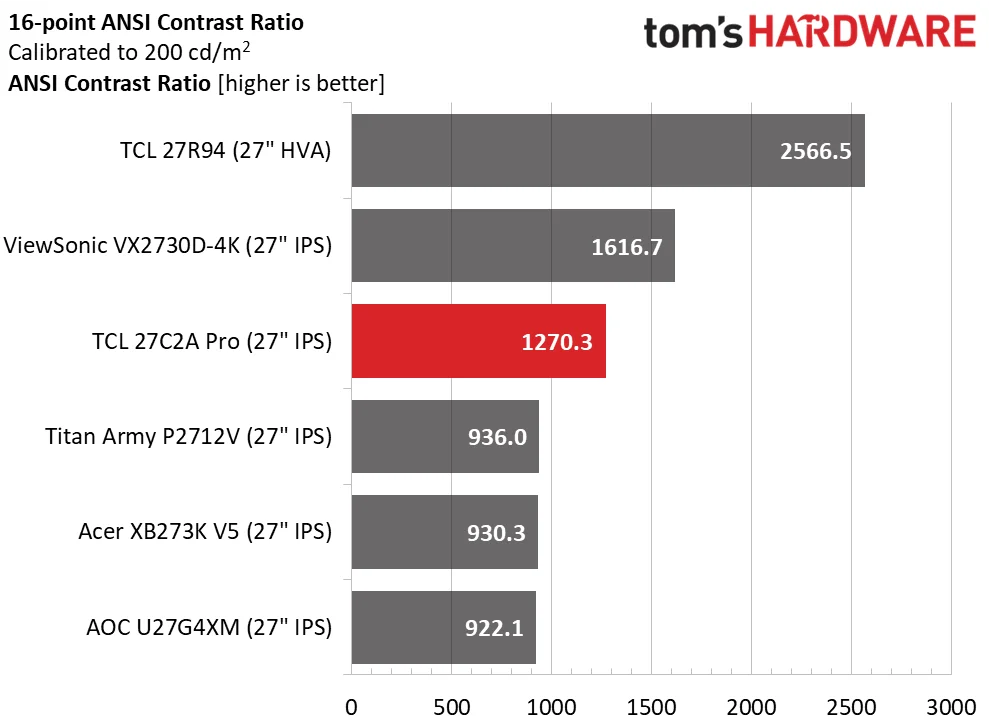
With local dimming disabled, the panel’s measured native contrast was 1,204.1:1, above the cited IPS average. After calibration, an ANSI test measured 1,270.3:1, an unusually high result for an intra image contrast test. The review also found excellent screen uniformity: average deviation from the center zone was 3.75%, with no visible backlight bleed or glow in the test patterns.
4K sharpness and dual refresh modes
At its native 3840 by 2160 resolution, the 27 inch screen has a pixel density of 163 pixels per inch. That makes text and detailed imagery sharp at a desk viewing distance. The 4K mode tops out at 160Hz, while a dual mode setting switches the panel to 1920 by 1080 at up to 320Hz.
The lower resolution is an option for players whose graphics hardware can’t sustain high frame rates at 4K, or for games where refresh rate takes priority over pixel detail. Because 1080p is an exact integer scale of 4K, the reviewer found the image less soft than might be expected from a resolution drop. A GeForce RTX 4090 system maintained 160 frames per second in the tested 4K setup, while the 320Hz mode also ran as expected.
The monitor supports Adaptive Sync, overdrive and MPRT backlight strobing. A particularly useful detail is that all three can run together. Few LCD monitors allow that combination, which gives users more room to tune motion clarity to their game and frame rate.
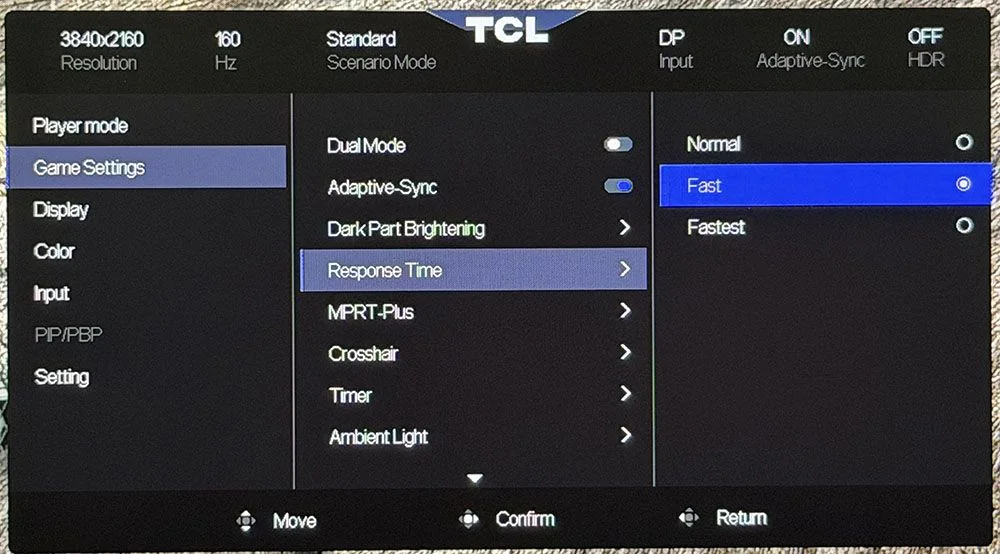
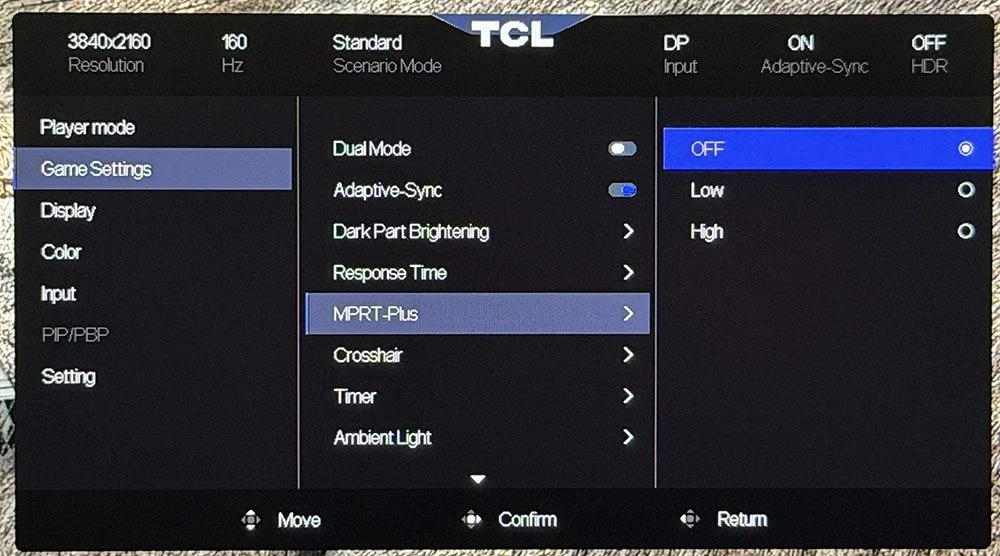
Overdrive has three speed settings; Fast produced the best balance in the reviewer’s tests. MPRT uses a pulsing backlight to reduce perceived motion blur. Its stronger setting cuts brightness by about 50%, though the monitor has enough brightness headroom to compensate with the brightness control. Strobing made moving images clearer, but introduced a slight phasing artifact, so the reviewer left it off during gaming tests.
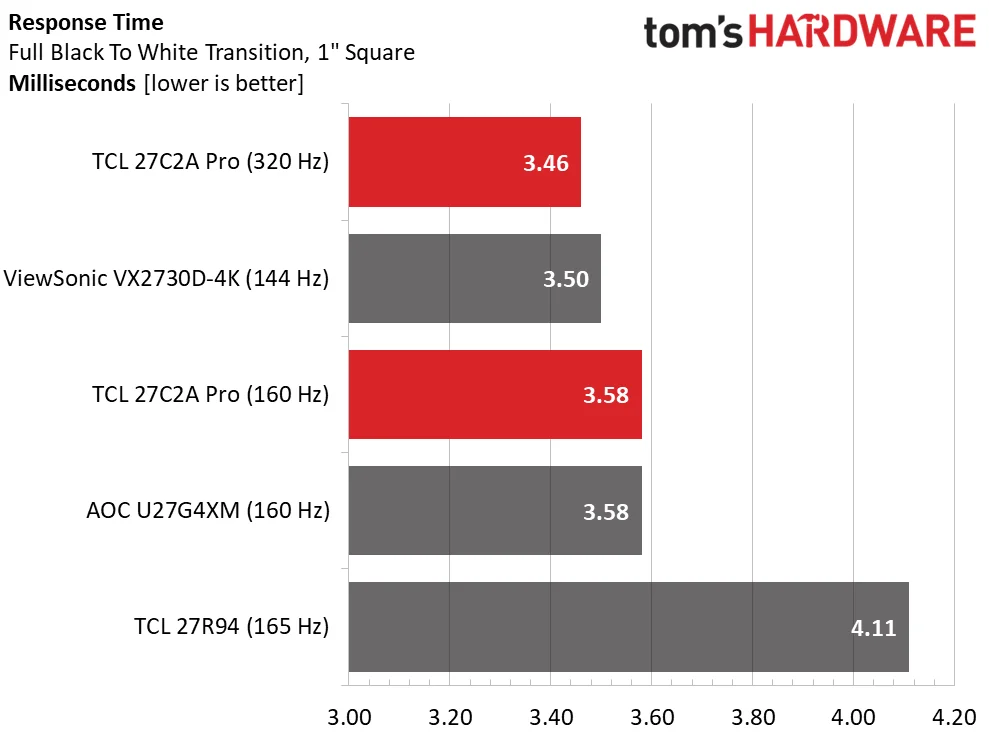
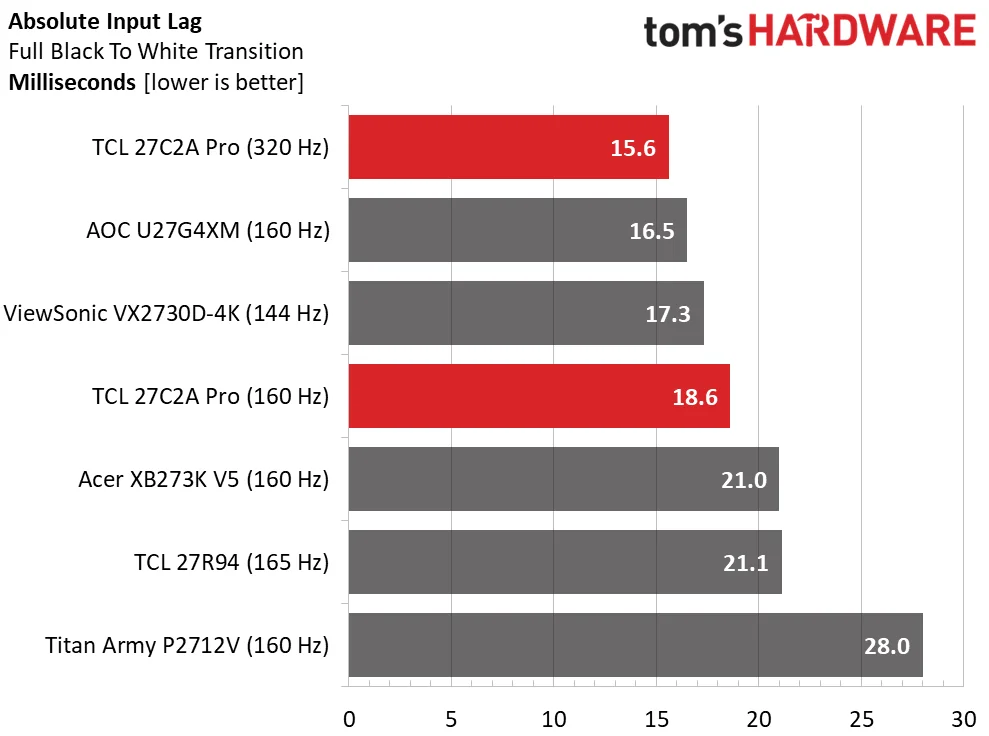
Measured pixel response was close to other 27 inch 4K LCDs in the comparison. The panel wasn’t the fastest by response time alone, but its overdrive kept moving patterns clear. Switching to 320Hz made it a little quicker in testing, though not by an amount the reviewer could see. Input lag was about average at 160Hz and ranked first in the 320Hz comparison; in ordinary play, the difference was unlikely to be noticeable.
In hands on use, control response felt immediate and motion remained smooth. Adaptive Sync with Fast overdrive was the preferred everyday configuration. MPRT may be useful when frame rates fall below 144Hz and blur becomes more apparent, provided the user accepts its small visual artifact.
Color modes matter
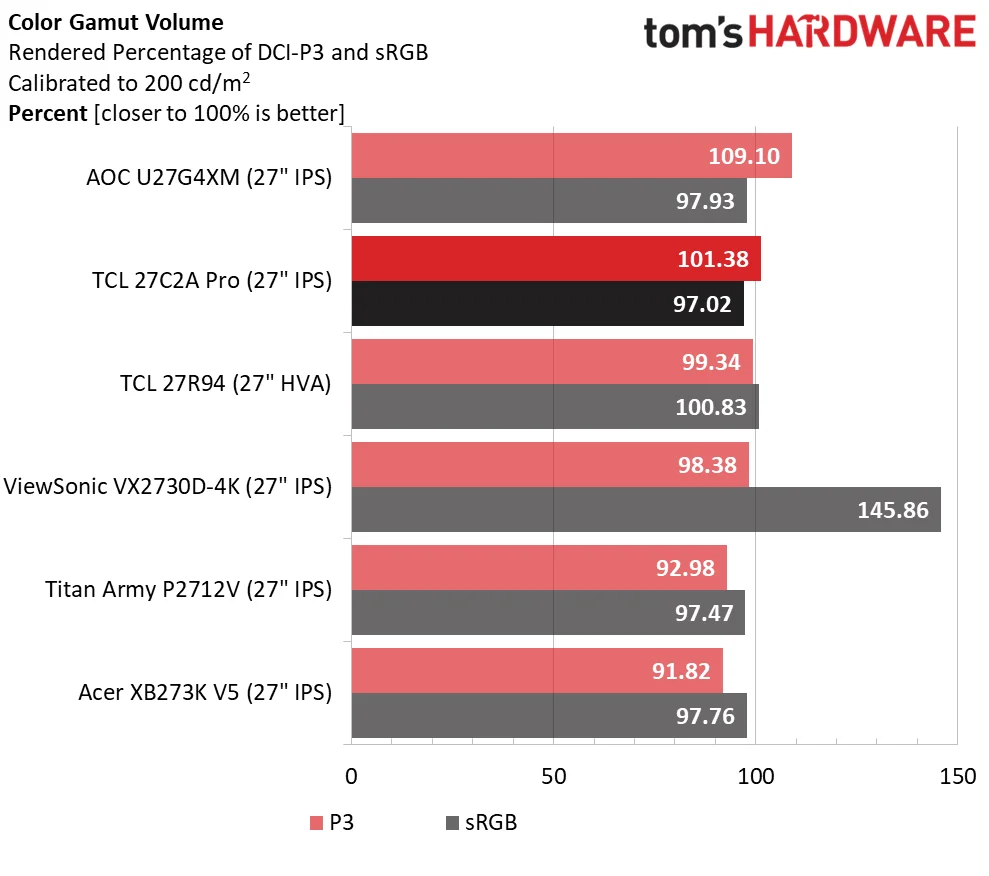
The Quantum Dot backlight gives the 27C2A Pro a measured DCI-P3 color volume of 101.38% after calibration. Its sRGB volume measured 97.02%, with a slight shortfall in red. The monitor also includes selectable sRGB, Rec.709, DCI-P3 and Adobe RGB modes, a range that suits both general display work and print oriented content creation.
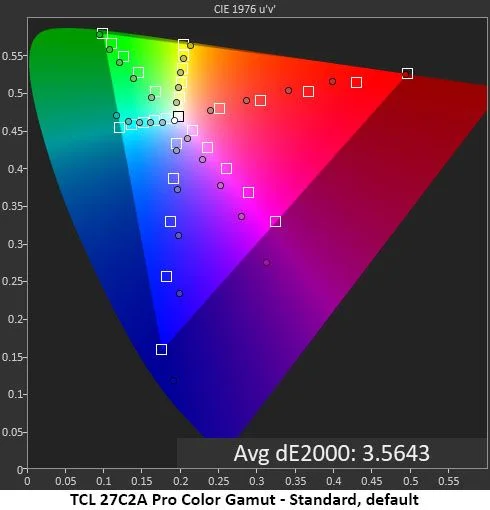
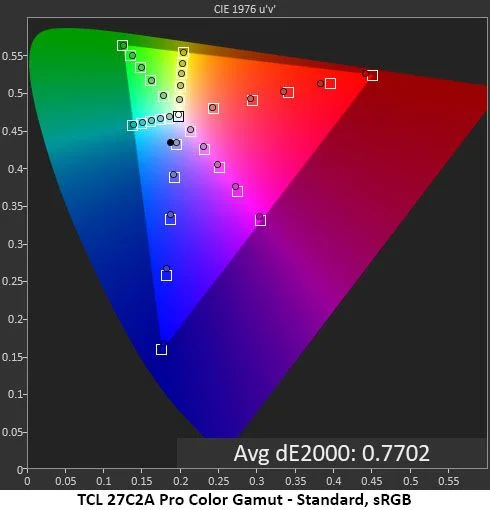
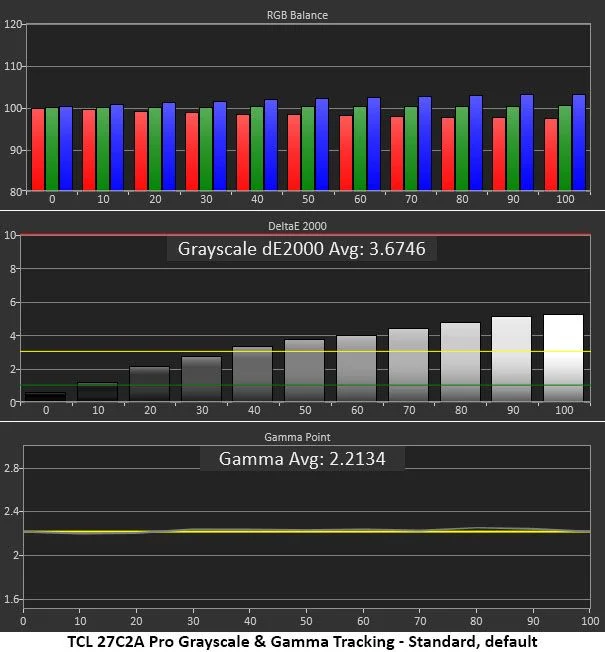
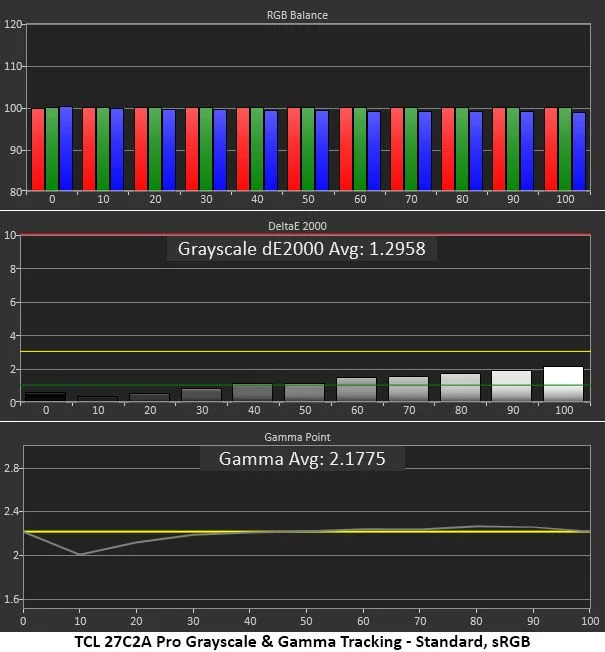
Out of the box, the Standard picture preset uses the Original color space. Grayscale and gamma looked good in that setup, but color tracking had visible hue errors, with some colors undersaturated and others oversaturated. The fix is to choose a specific gamut in the color menu. In testing, the dedicated gamut modes delivered much better accuracy than Original, and small adjustments to the red, green and blue controls refined the result.
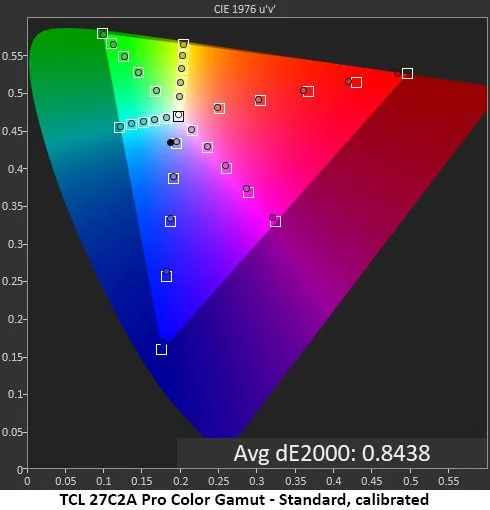
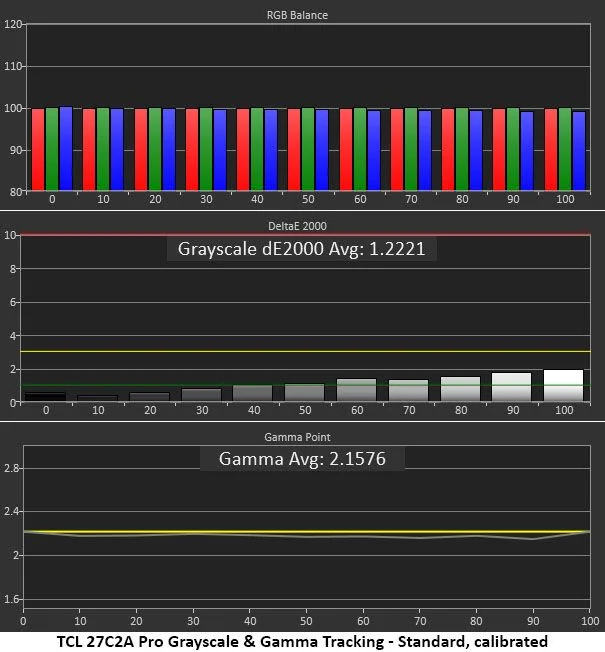
The reviewer’s calibration used Standard mode, the DCI-P3 color space and RGB values of 49 for red, 49 for green and 51 for blue. Contrast remained at 50 and gamma at 1. The review reports brightness settings of 43 for 200 nits, 21 for 120 nits, 17 for 100 nits, 11 for 80 nits and 4 for 50 nits; the minimum setting produced 39 nits.
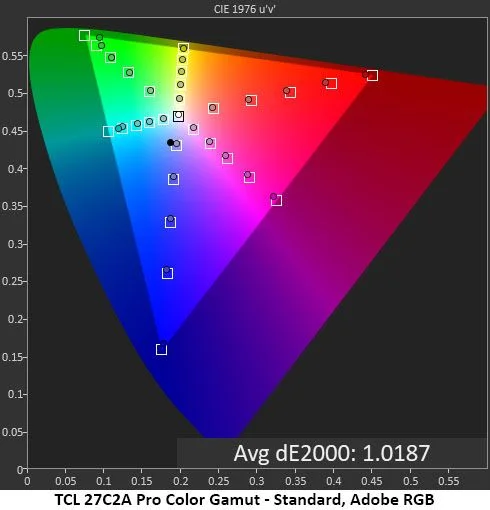
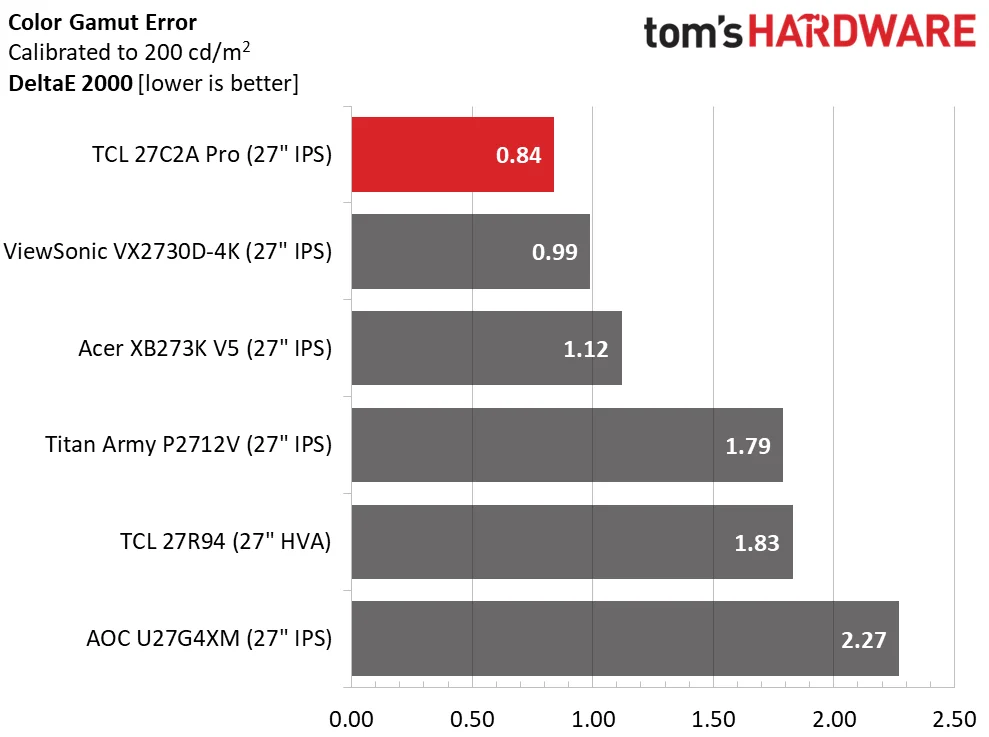
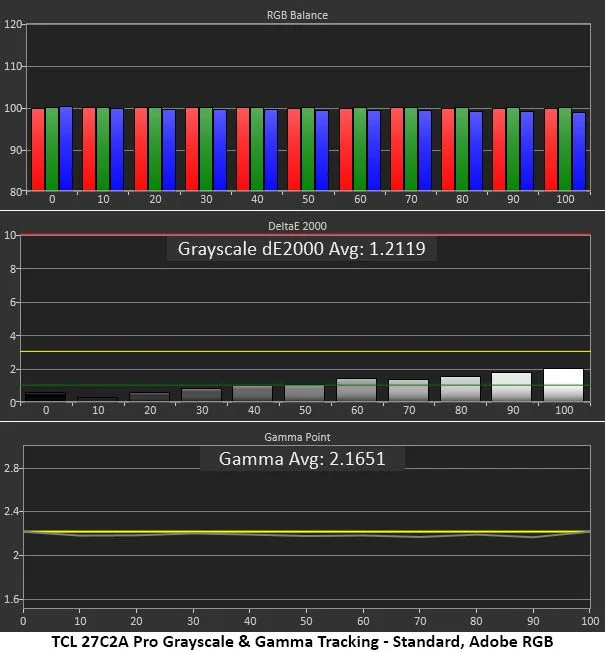
For the other targets, the sRGB and Rec.709 modes were also highly accurate, while Adobe RGB performed well and came slightly short in green. Its inclusion is unusual among gaming monitors and can help people preparing images for print. The calibrated DCI-P3 gamut test averaged below 1 delta E, a level the review considered suitable for color critical work.
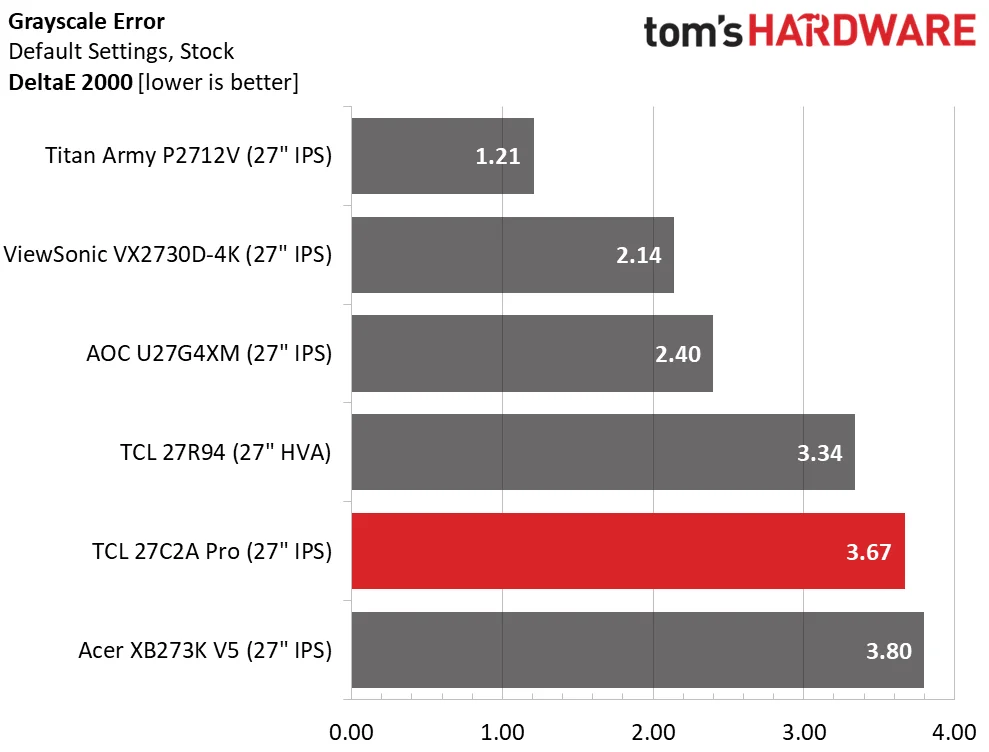
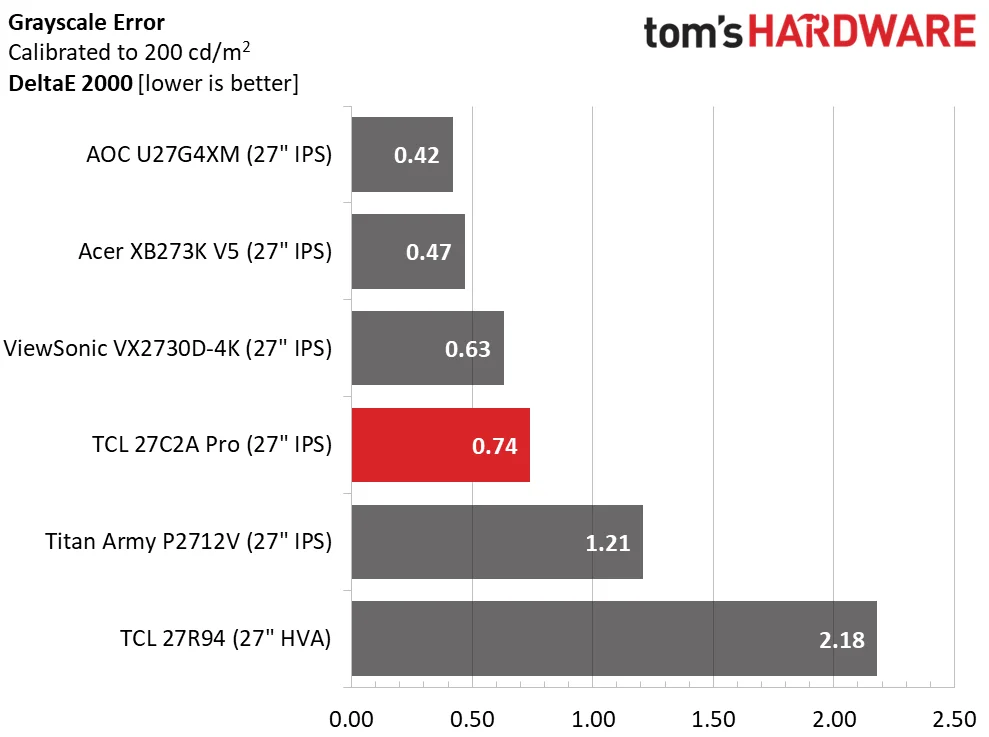
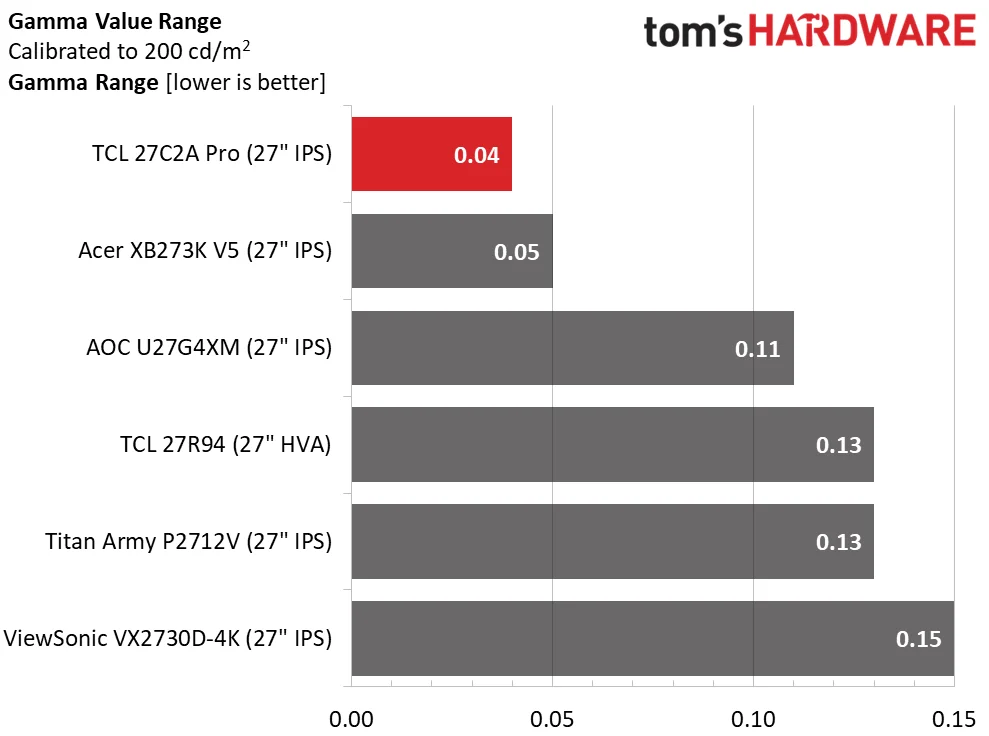
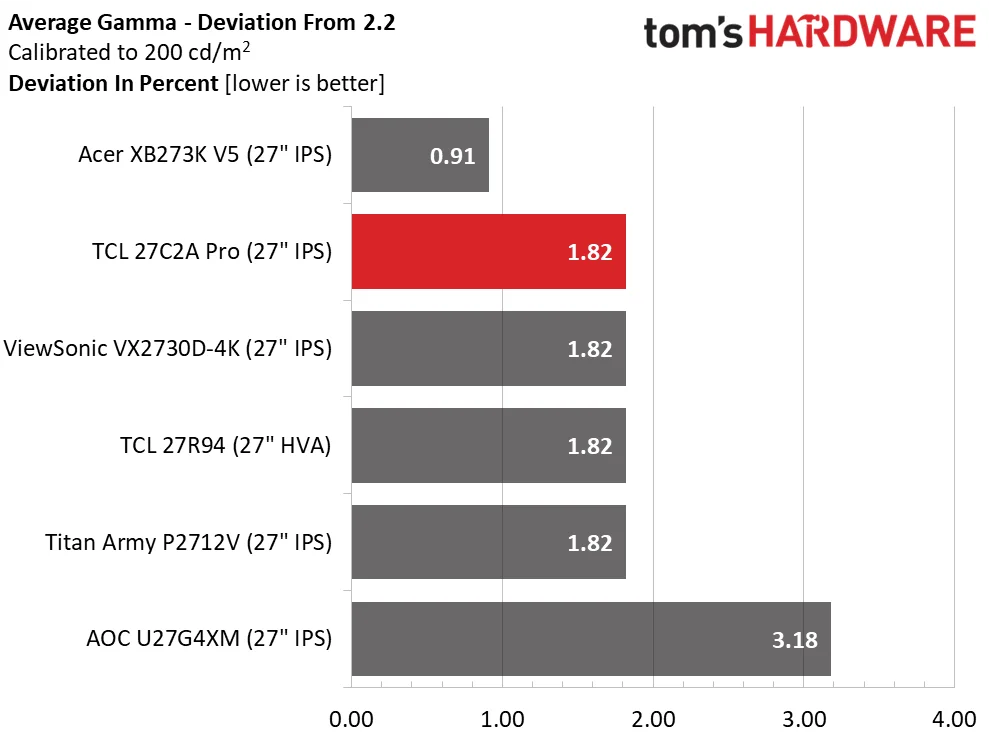
Grayscale started at a measured 3.67 delta E, with a slight blue cast. After adjustment, it measured 0.74 delta E. Gamma tracking was already excellent: the reported average deviation was 1.82%, with an actual gamma value of 2.16. That means most users won’t need extensive calibration, but they do need to select the correct color space first.
HDR controls and image behavior
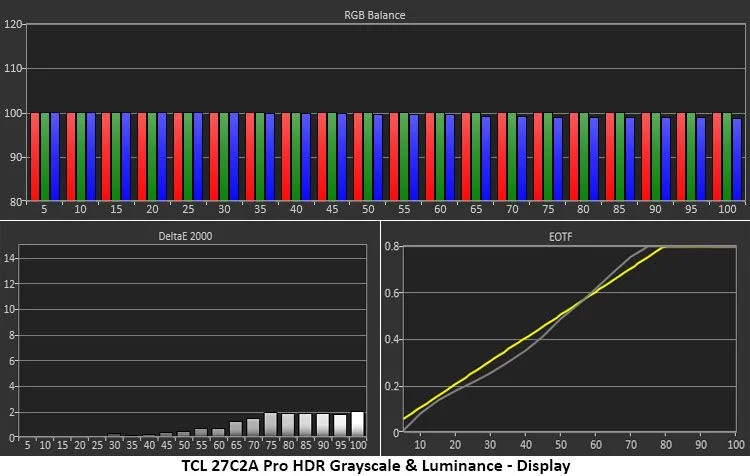
The monitor supports HDR10 and offers Display and Cinema presets. They share similar color, but their EOTF tracking differs slightly. The reviewer preferred Display, which looked a little more textured than Cinema. HDR mode also retains controls for grayscale, brightness and local dimming, giving users more adjustment than many displays offer once an HDR signal is active.
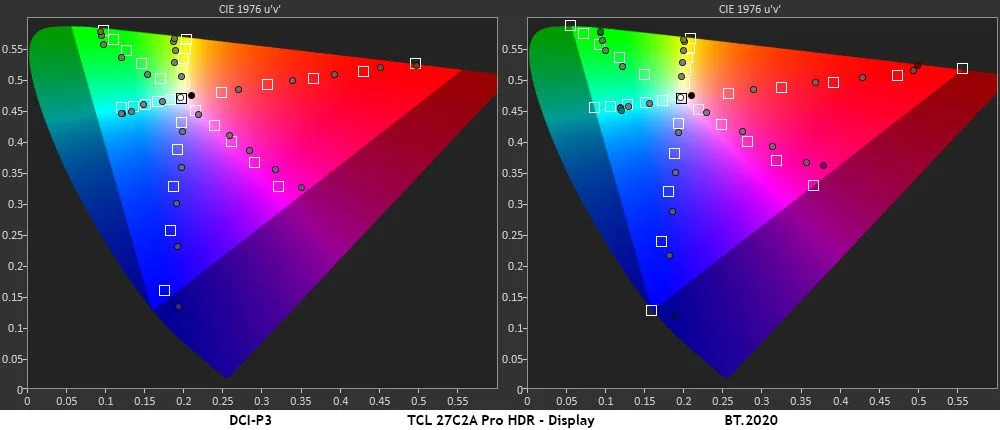
Applying the same RGB adjustment used for SDR produced nearly perfect HDR grayscale in testing, with almost all errors below 2 delta E. HDR color was slightly off in magenta, green and yellow, while overall saturation was somewhat high, a behavior the reviewer also saw on other HDR monitors. The display covers DCI-P3, with extra reach in blue and magenta. In the BT.2020 test, it reached 88% of red and 75% of green, while exceeding 100% in blue.
Local dimming on High provides the deepest blacks and strongest contrast, though the reviewer noted that its backlight shuts off in areas with a zero signal. The 27C2A Pro won’t match the pixel level precision of OLED, but its combination of dimming zones and high output makes HDR highlights particularly forceful.
Build, ports and setup
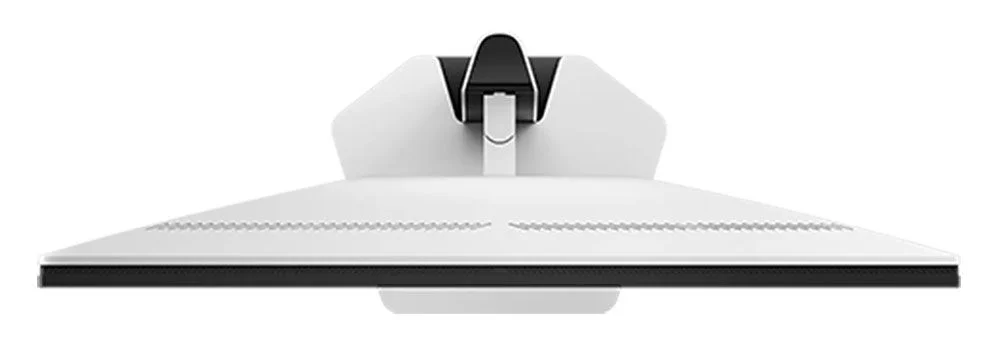
The monitor ships in three main pieces: base, upright and panel. They connect without tools. A 100mm VESA mount sits beneath the snap on fulcrum, and the package includes the fasteners needed to attach an arm. The external power supply is a brick, with DisplayPort, HDMI, USB A to B and USB C cables supplied.
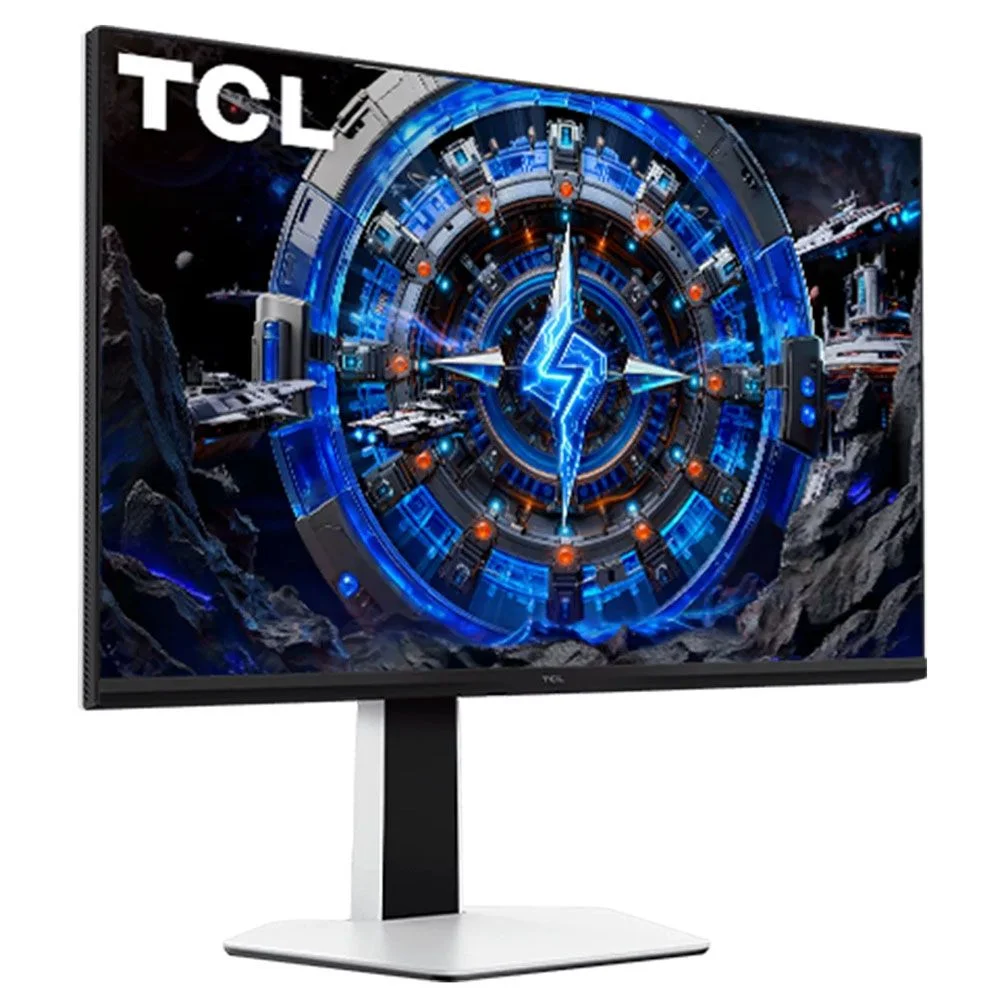
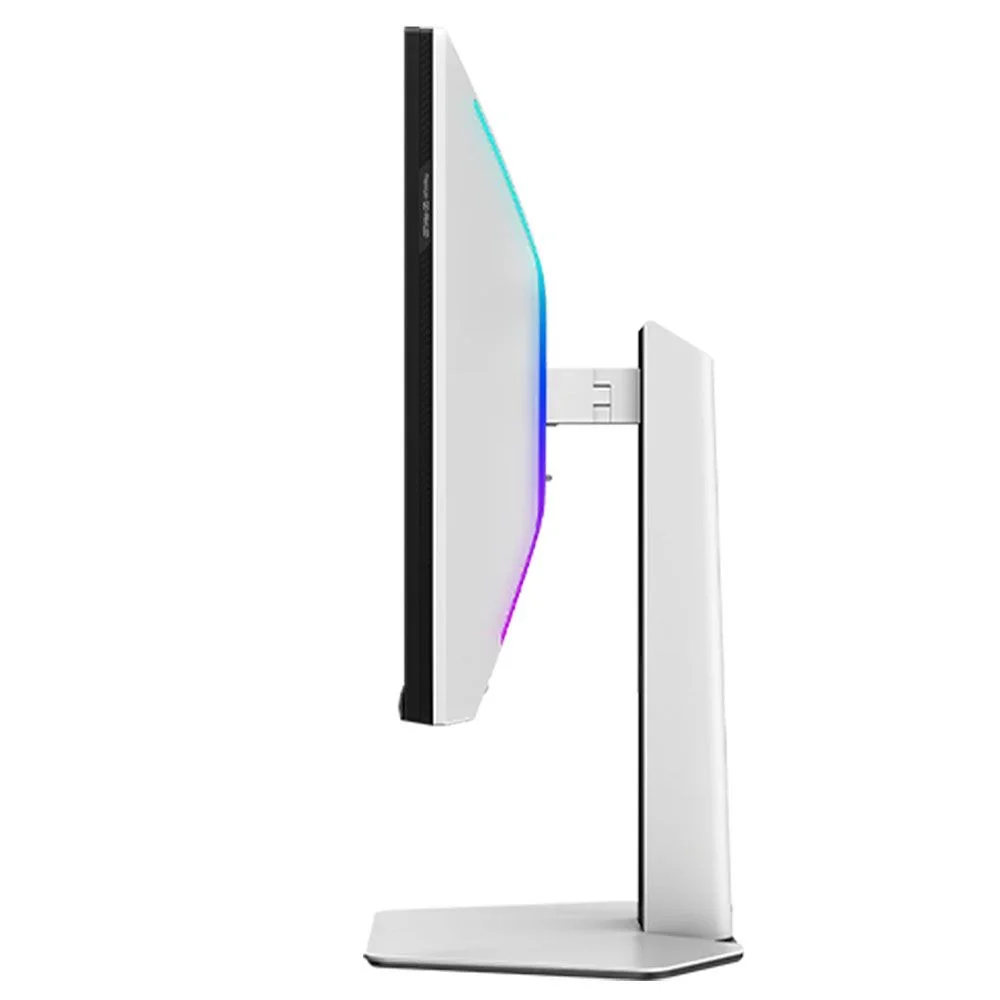
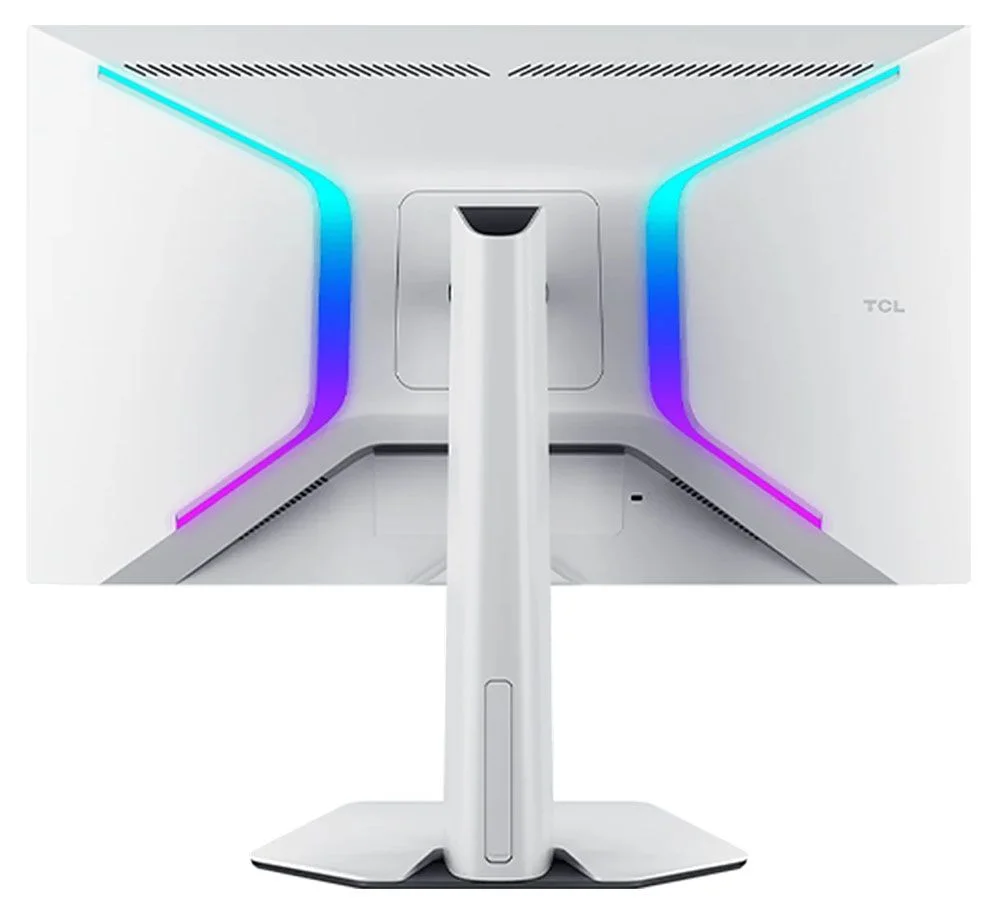
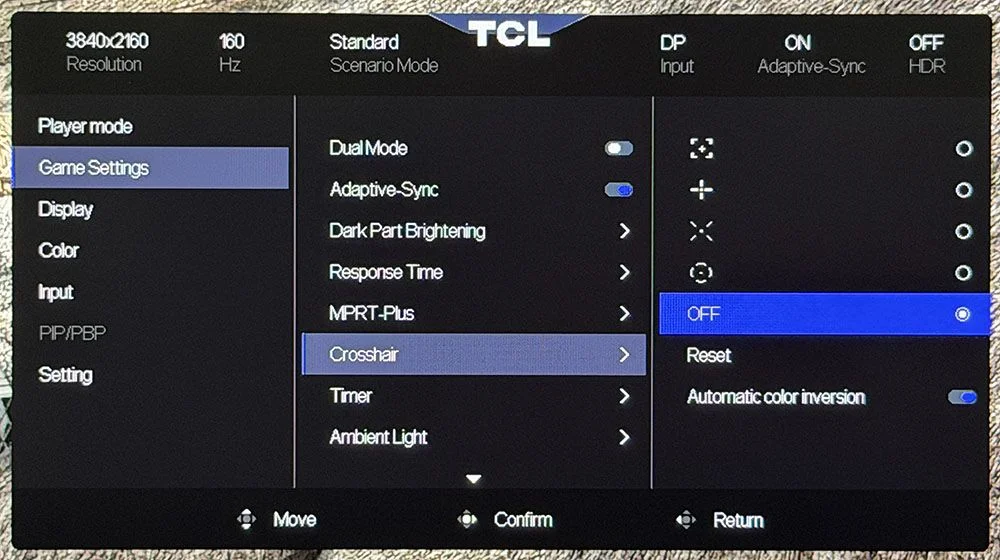
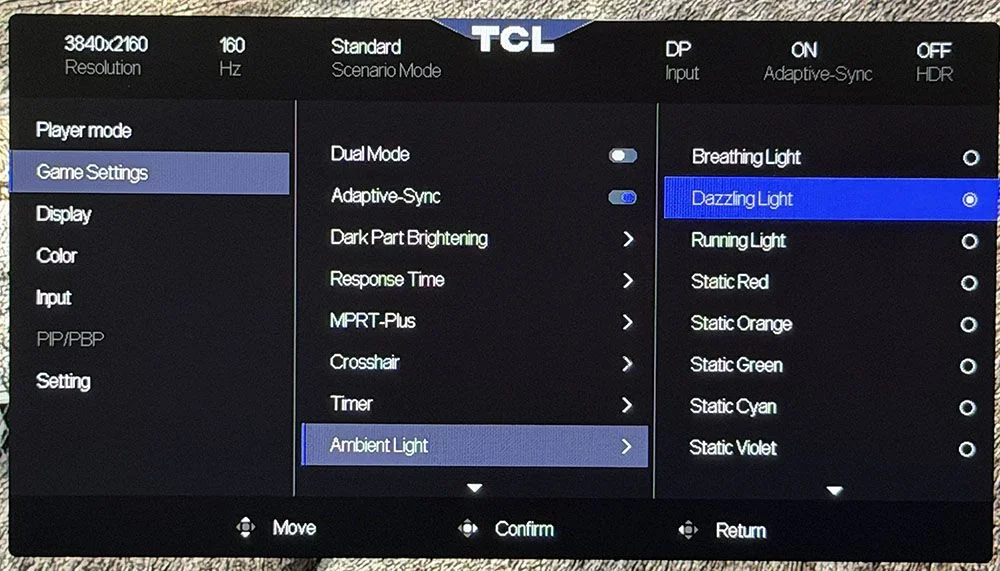
From the front, the screen is mostly black, with a small TCL logo on the bottom bezel. The top and side bezels measure 9mm; the bottom strip is 15mm. The rear and stand use white plastic, with two large LED arrays shaped like reversed parentheses. The control joystick is centered underneath and backlit. The lighting and gaming aids, including aiming points, timers and a frame rate display, can be adjusted in the on screen menu.
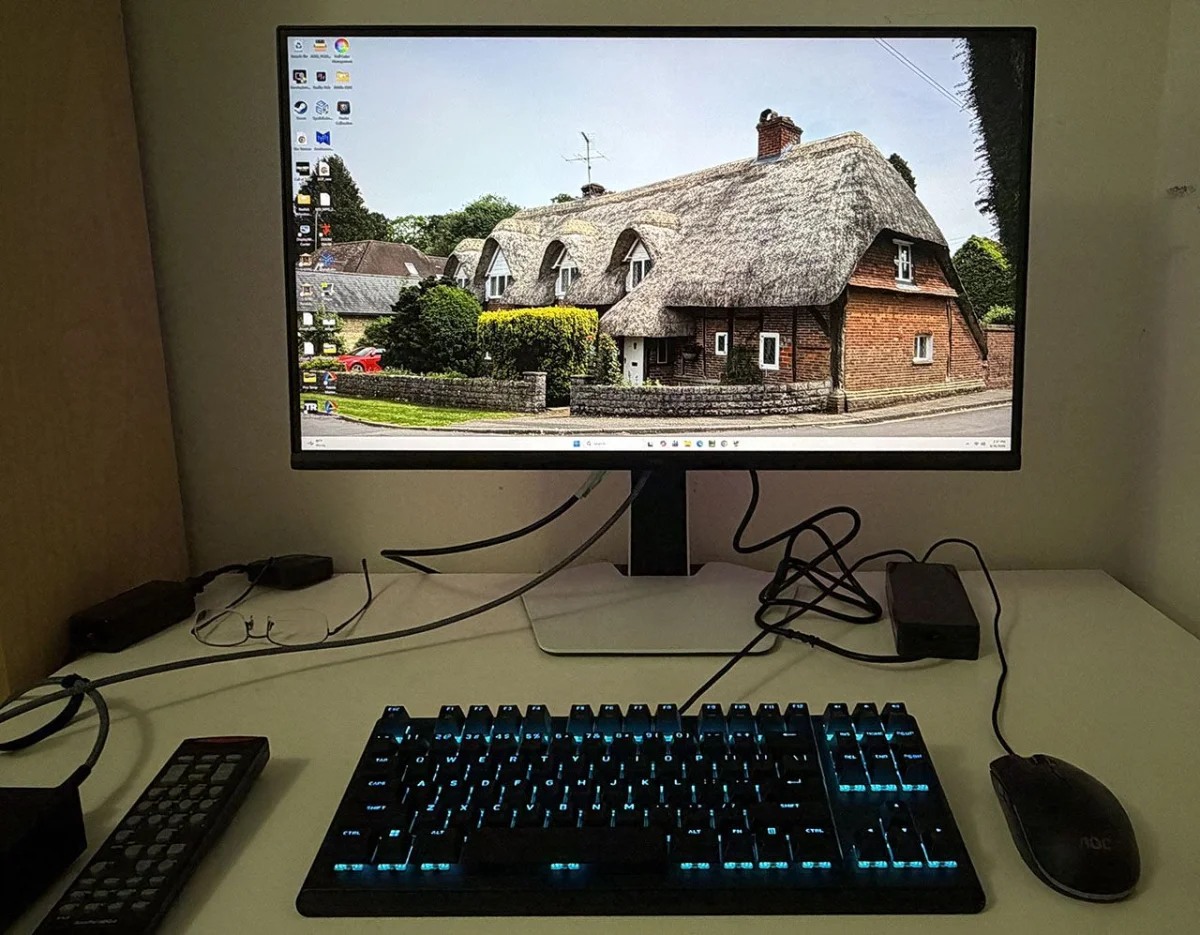
The stand provides tilt, swivel, height adjustment and portrait rotation. It tilts five degrees forward and 15 degrees back, swivels 20 degrees, rotates 90 degrees and offers 4.8 inches of height travel. The base and upright feel solid, but the joint connecting the panel to the stand wobbles. Desk movement became noticeable during intense gaming, especially with a keyboard on the same surface. A monitor arm may be a sensible addition for buyers who need a steady screen.
Connections include one DisplayPort 1.4, two HDMI 2.1 ports and a USB C port that supplies up to 90 watts. There is also one USB 3.0 upstream port and two downstream ports, alongside a headphone jack and two 5 watt speakers. KVM options and picture in picture or picture by picture controls are available in the menu. Power consumption measured 36.1 watts at 200 nits.
On screen menu and everyday use
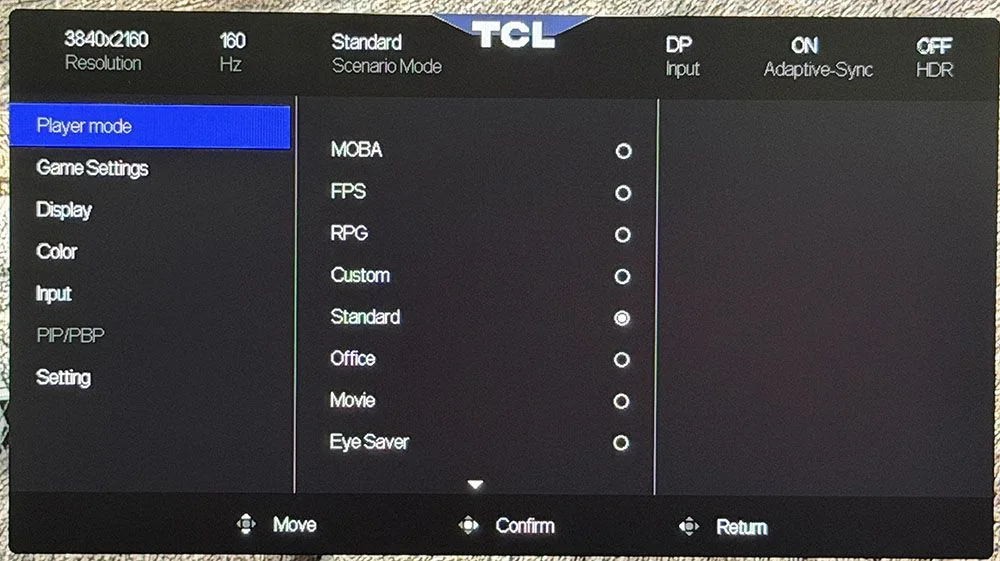
The on screen display packs in plenty of controls, but its text is small at 4K, making settings harder to read from a normal seating position. The menu appears through the joystick. The nine picture presets include Standard, though the color space menu is the more important control for accurate output.
Local dimming has three levels. Standard makes a modest contrast improvement, while Medium and High darken black areas more aggressively. The gaming section houses overdrive, MPRT, Adaptive Sync and the extra aiming and timing tools. Elsewhere, users can choose color temperature and gamut, manage KVM and multi input layouts, adjust menu behavior, or restore factory settings.
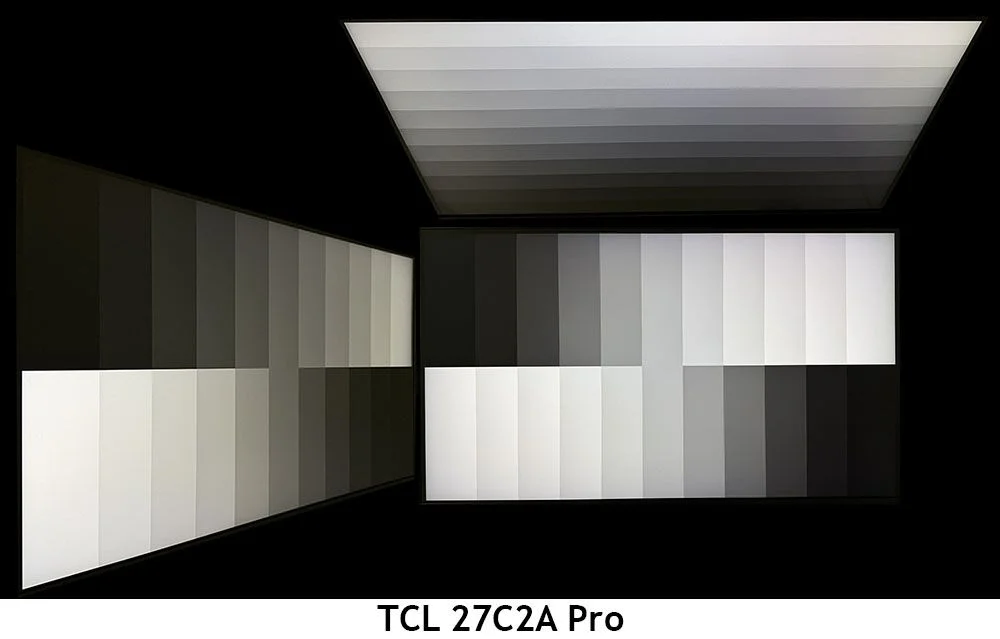
Viewing angles were consistent with a premium IPS screen. From the side, colors shifted slightly toward green without an obvious loss of brightness or gamma. From above, the image became cooler and lost some brightness and gamma. The picture remained suitable for sharing at a desk.
Who should consider it?
The 27C2A Pro combines sharp 4K detail, a high refresh rate, deep local dimming and the brightness to make HDR highlights stand out. Its 320Hz 1080p mode adds flexibility for less powerful systems, and the selectable color modes extend its usefulness to photo and graphics work. The unusual ability to combine Adaptive Sync, overdrive and backlight strobing gives competitive players more control over motion.
There are tradeoffs. The panel is still an LCD, so it can’t match OLED’s pixel level black control. MPRT introduces a slight phasing artifact, the 4K menu text is tiny, and the stand wobbles at its panel joint. The monitor’s excellent color also depends on selecting a gamut mode instead of leaving it on Original.
For the $600 price cited in the review, the TCL 27C2A Pro is a capable alternative for buyers who want OLED like contrast and vivid color with far higher peak brightness. Its strongest fit is a desk where one screen needs to handle high refresh gaming, HDR viewing and accurate creative work. If the stand’s movement is a concern, the VESA mount offers a straightforward way to use an arm.